Troubleshooting identity verification
Who this page is for
If you are a help desk agent on a call, start at the triage table. Find what the caller is describing, follow the link, and tell them what it says.
If you are an administrator, Settings explains what each control decides and which of the situations below it causes.
The three sensors — the browser extension, the iOS app and the web app — fail in the same ways, so each section below covers all of them at once and the tag under the heading says which ones it applies to. Only the screens differ.
Most failed verifications are not faults. They are a person whose sensor has not finished signing in, a person who has no device at all, or a setting that has not been switched on.
Triage table
| What the caller says | Apps | Go to |
|---|---|---|
| "It's asking me for a code before I can use it" | ExtensioniOSWeb | Asking for an activation code |
| "It's been spinning for ages" / "it says registration failed" | ExtensioniOSWeb | Activation never completes |
| "I signed in but nothing happened" | ExtensioniOSWeb | Sign-in never completes |
| "It keeps making me sign in again" | ExtensioniOSWeb | Asked to sign in over and over |
| "I don't have a Verify tab" / "it says authentication required" | ExtensioniOSWeb | No verification screens |
| "Where do I find my code?" | ExtensioniOSWeb | Where the code is |
| "I never got the request" | ExtensioniOSWeb | The request never appeared |
| "It disappeared" / "it says cancelled" / "it expired" | ExtensioniOSWebConsole | The session ended early |
| "The code was rejected" | ExtensioniOSWebConsole | The code was rejected |
| "It says they have no active device" | Console | No usable device |
| "No email arrived" | Console | The email code never arrived |
| "It won't let me verify them at all" | Console | Verification is refused |
| "It says too many attempts" | Console | Too many attempts |
| "I can't find them in the list" | Console | The person is not listed |
| "There's no verify button on their row" | Console | The row offers nothing |
Before you start
Three things must be true before anyone can be verified, and they fail in this order:
- Your organization has verification switched on. Require IDP authentication is the master switch — see Settings.
- The person's sensor is activated. It has an activation code and SlashID has confirmed it.
- The person has signed in with their corporate identity. Activation and sign-in are separate steps, and a sensor can be fully activated by someone who has never signed in.
Getting a sensor working
Asking for an activation code
Applies toBrowser extensioniOS appWeb appThe sensor has never been activated, so it is asking for the code that ties it to your organization. The browser extension also shows a warning badge on its toolbar icon.
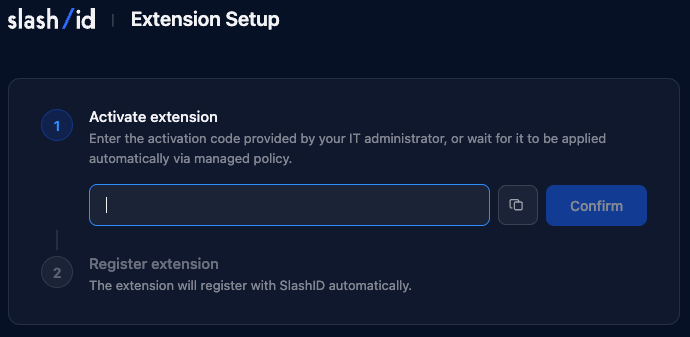
Where the code comes from depends on the sensor:
- Deployed by policy — through Google Admin, Intune or another management tool. The code arrives on its own, usually a few minutes after install. Tell the caller to leave it and check back, and raise it with whoever manages the deployment if it does not arrive.
- Entered by hand — the caller pastes the code your organization issued. The iOS app can also scan it as a QR code, which the browser extension's Connect App tab produces.
- From a link — the web app is normally opened through a link carrying the code. A caller who opened it in a different browser, in a private window, or after clearing their browsing data will be asked for it again; either reopen the original link or paste the code by hand.
A caller who says the sensor "forgot" a code they entered earlier is describing a code that was rejected — see Activation never completes.
Activation never completes
Applies toBrowser extensioniOS appWeb appThe sensor has a code but never becomes usable. The browser extension checks every 5 seconds and gives up after a minute; the other sensors report the failure directly.
What the caller sees next depends on how the code arrived, and the two look nothing alike:
- Deployed by policy — a retry button. Ask the caller to press it once.
- Entered by hand — the code is discarded and they are returned to the entry box, which is why it looks to them as though the sensor forgot what they typed.
If a second attempt fails, the code itself is the problem and an administrator needs to issue a new one. The same thing happens organization-wide when an administrator replaces the activation code: every sensor re-activates on its own, and any that cannot will ask for a code again.
If users are unable to enter a new code while waiting, ask them to refresh the page if using the browser extension or the web app.
Sign-in never completes
Applies toBrowser extensioniOS appWeb appThe sensor is activated and waiting for the person to sign in with their corporate identity. It opens a login page and waits.
Almost always the login was abandoned: the tab was closed, or it was completed in a different browser profile from the one the extension is installed in. Ask the caller to start the sign-in again and complete it fully. The sensor moves on by itself once it succeeds — there is nothing to press afterwards.
If your organization switches Require IDP authentication off while someone is stuck here, their sensor recovers on its own within a minute. They do not need to log in first.
Asked to sign in over and over
Applies toBrowser extensioniOS appWeb appSigning in works, but the sensor asks again later. Two causes, needing different answers:
- Their sign-in stopped being accepted. The sensor clears the session and asks again the moment SlashID rejects it — most often because it expired, or because the person was changed or removed in your identity provider. Signing in again is the fix; if it keeps happening, the account itself is worth checking.
- The stored sign-in was wiped. Clearing browsing data removes it from the browser extension and the web app, as does working in a private window. Nothing is wrong; it persists normally in an ordinary window.
Mistyping a verification code does not sign anyone out. A caller who was asked to sign in immediately after a wrong code is describing two separate events.
The iOS app asks for Face ID or Touch ID every time it is opened. That is the device lock, not a sign-in, and it cannot be switched off. Deleting and reinstalling the app does not clear a stuck sign-in either — the app detects the reinstall and clears its credentials, which sends the caller back to activation.
No verification screens
Applies toBrowser extensioniOS appWeb appThe sensor is installed, activated and working, and offers no way to verify anyone. Each one says it differently: the browser extension simply has no My Code or Verify Caller tab, the iOS app shows a padlock and "Authentication required", and the web app says it is not available for this organization.
This is the most common report of all, and nothing is broken. Verification appears only when your organization has Require IDP authentication switched on and the person has completed that sign-in. With the requirement switched off, sensors run as security sensors and offer no verification at all.
There is nothing the caller can do. If verification is meant to be available, an administrator needs to switch Require IDP authentication on — see Settings.
Where the code is
Applies toBrowser extensioniOS appWeb appEvery sensor shows it on its My Code screen. It is six digits, changes every 30 seconds, and has a ring or timer showing how long is left. In case of MTOTP, the code the user must read out is present on the same screen they enter the code of the person they are verifying.
Verification problems
The request never appeared
Applies toBrowser extensioniOS appWeb appYou started a verification and the caller says nothing happened.
Ask them to open the sensor rather than to wait for a notification. An incoming request switches to the verification screen by itself once the sensor is open, but the browser extension cannot open its own popup, and the iOS push notification is a convenience rather than the mechanism — the request is waiting inside the app whether or not a notification arrived.
If the sensor is open and still shows nothing, the request went to another of their devices, or to a different person entirely. Check the address you started it with.
The session ended early
A verification session lasts two minutes and ends in one of four ways:
| Ending | What happened | What to do |
|---|---|---|
| Complete | Both sides verified each other. | Nothing — this is success. |
| Expired | The two minutes ran out. | Start it again. |
| Cancelled | One side dismissed it; the other is told who. | Ask whether the caller closed it, then start again. |
| Partially complete | One side verified and the other did not. | Not a verification. Start again and complete both steps. |
Two minutes is short for a call that involves explaining what is about to happen. Explain the steps first, confirm the caller has their sensor open in front of them, and only then start the session.
Partially complete is the one to watch. Somebody proved themselves and the other party did not — treat it as unfinished, never as good enough.
The code was rejected
Two causes account for nearly all of these, and neither means the caller is an impostor:
- A stale code. Codes change every 30 seconds. A caller reading slowly, or one who was interrupted, is reading a code that has already changed. Ask for the current one.
- The code from the wrong screen. In mutual verification each side has its own code — see Where the code is.
Repeated failures from a caller who insists they are reading the current code are worth stopping over rather than retrying.
No usable device
Applies toSlashID ConsoleThe Console reports that the person has no active device linked to SlashID. Three things produce it: they never installed a sensor, they had one and it was uninstalled or suspended, or the one they are using is not the one registered to them — a different browser profile, or a second machine.
Only a device SlashID counts as active can be used, and your organization caps how many devices one person may register, so someone at that cap cannot add another until an old one is removed.
Ask what they have installed and where. If they have nothing, switch to a delegated verification or an email code if your organization allows them. The same message appears when a chosen stand-in has no device.
The email code never arrived
Applies toSlashID ConsoleWork through these in order:
- Check who it was sent to. The Console shows the recipient masked. In a delegated verification the code goes to the stand-in, not to the person being verified — a caller waiting for a code that went to their manager will wait forever.
- Check the address is the one they use. It comes from your identity source, which may hold an old address or an alias.
- Ask them to check spam and quarantine. Corporate mail filtering is the commonest cause of a code that was sent successfully and never seen.
- Check the send limit. Three codes to the same person within 10 minutes is the cap — see Too many attempts.
Codes expire, so one found in a spam folder later will not work. Send a new one.
Verification is refused
Applies toSlashID ConsoleYour organization can require that only people present in a chosen identity source may be verified. Someone absent from it is refused.
This can also fire in the middle of a session that started normally, if the person is removed while the call is in progress. It reads like a fault and is not one: it is the system denying verification the moment somebody stops being an employee. Treat a mid-call refusal of this kind as significant rather than as an error to retry.
Too many attempts
Applies toSlashID Console| Limit | Value |
|---|---|
| Starting a verification | 10 in 5 minutes, per agent |
| Sending an email code to one person | 3 in 10 minutes |
| Sending email codes overall | 20 per hour, per agent |
| Checking one email code | 5 attempts per minute |
| Checking email codes overall | 30 per hour, per agent |
An agent working through a queue can reach the hourly limits legitimately. Waiting is the only remedy; these are not configurable.
Three things are refused outright rather than rate limited, all for the same reason — a verification nobody independent takes part in proves nothing: verifying yourself, naming the person being verified as their own stand-in, and naming yourself as the stand-in.
Console problems
The person is not listed
Applies toSlashID ConsoleThe Identity Verification list is built from your identity sources and from the people who have registered a sensor. Someone missing from it entirely is missing from those sources — a new joiner who has not synced yet, an account in a system SlashID is not connected to, or someone excluded by the identity source your organization chose for verification.
This is an administrator question, not something to work around on the call.
The row offers nothing
Applies toSlashID ConsoleThe person is listed, but there is no way to verify them. Each method appears only when it can actually work:
| Method | Requires |
|---|---|
| Device code | A known email address and at least one active device |
| Delegated | A known email address, delegation switched on, and at least one way of choosing a stand-in enabled |
| Email code | At least one reachable recipient — this one does not need an address on the row itself |
Someone with no known address and no device is offered nothing at all. That is a configuration outcome, not a fault: either their identity source holds no usable address for them, or the methods that would cover them are switched off.
Settings
Applies toSlashID ConsoleThe controls are split across two pages in the SlashID Console, which is worth knowing before you go looking: the master switch lives with the data source, and everything else lives on the Browser Extension settings page. All of them govern every sensor, not only the browser extension.
Turning verification on
Identity Protection → Configuration → Data sources → the SlashID Browser Extension data source, on its configuration tab.

| Setting | What it decides | What an agent sees when it is off |
|---|---|---|
| Require IDP authentication | The master switch for verification | No verification screens on any sensor |
| Identity provider and credentials | Which corporate login people use — Google, Microsoft, Okta or SAML | Sign-in never completes |
Choosing the methods
Identity Protection → Configuration → Browser Extension, under Helpdesk verification and Verification methods.
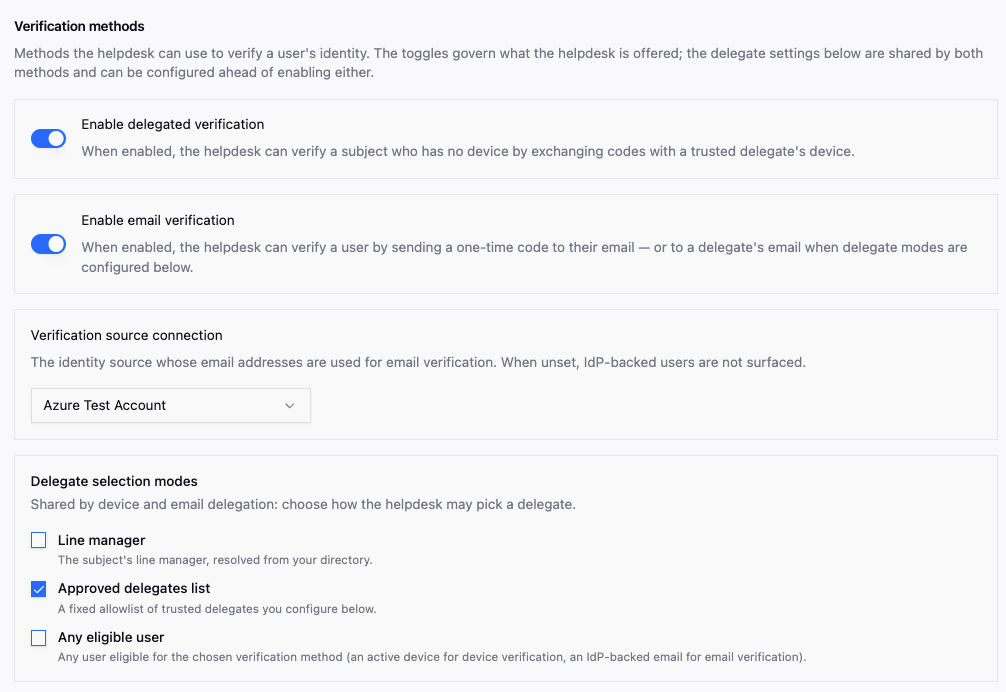
| Setting | What it decides | What an agent sees when it is off |
|---|---|---|
| Enable helpdesk verification | Mutual, or one-way | One-way only: the caller proves themselves, the agent does not |
| Who verifies first — "End user goes first" or "Helpdesk goes first" | Which side proves itself first | The steps appear in the other order |
| Enable delegated verification, plus the allowed modes — "Line manager", "Approved delegates list", "Any eligible user" | The escape hatch for people with no device | No delegated option on any row |
| Approved delegates | Who may vouch when the approved-list mode is on | Nobody qualifies, so that mode offers nothing |
| Enable email verification | The email fallback | No email option on any row |
| Verification source connection | Which identity source someone must appear in to be verifiable | People absent from it cannot be verified |
| Max installations per email | How many sensors one person may register | They cannot register another browser or phone |
Two worth deciding rather than defaulting
Enable helpdesk verification. Leaving it off means your agents cannot prove themselves to the people they call. Help desk impersonation runs in both directions, and this setting is what covers the other one.
Verification source connection. Pointing it at your identity provider means removing someone there denies them verification immediately, without a separate step in SlashID. That is usually what you want, and it takes effect straight away — including partway through a call.