Microsoft Intune (Windows)
Best for: Organizations managing Windows devices through Microsoft Intune.
On Windows the deployment takes two steps: a Settings-catalog policy force-installs the extension, and a PowerShell script writes the token to the registry. Use the UI controls in the Microsoft Intune admin center to set it up.
Step 1: Create silent installation policy
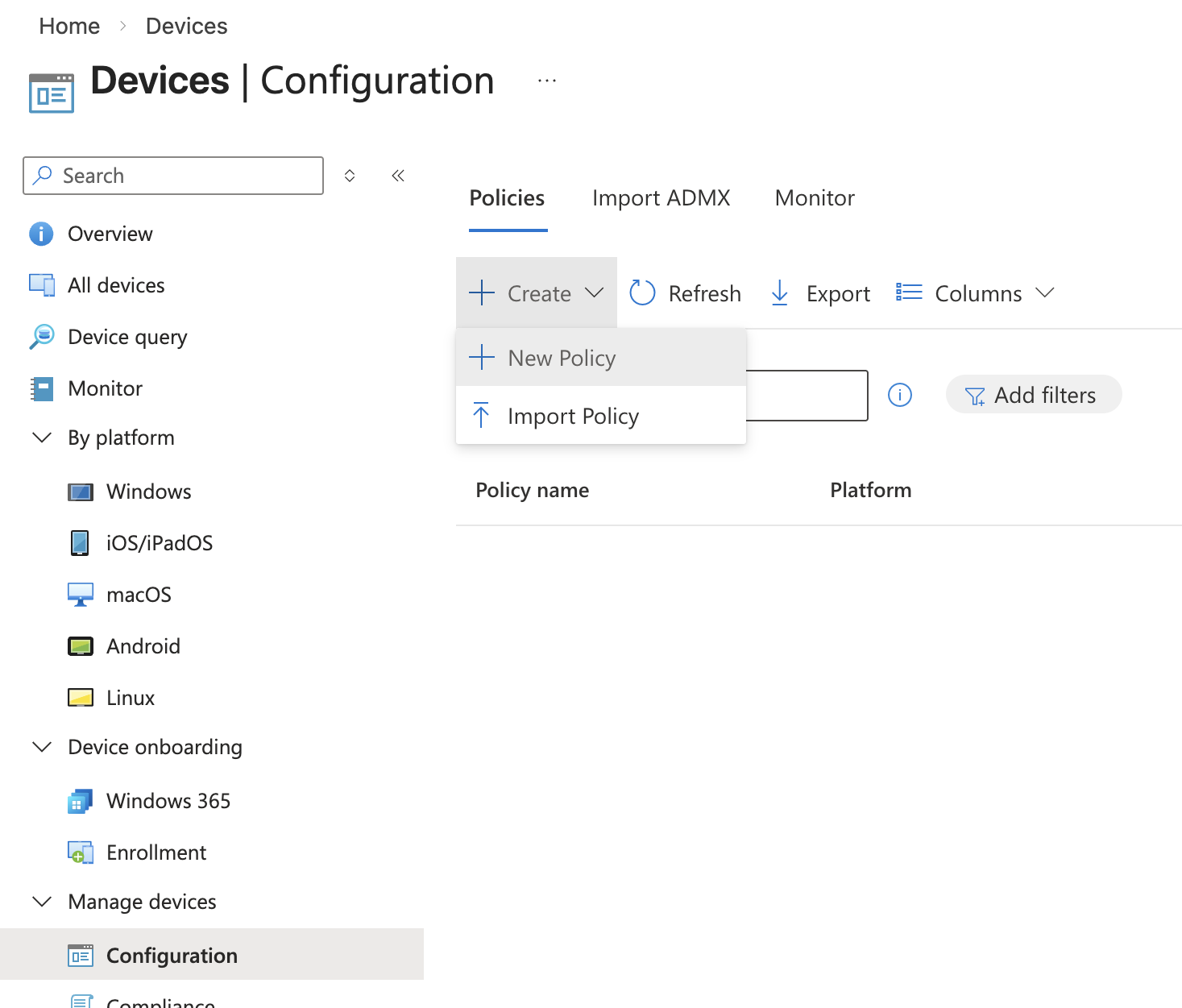
Add a new policy by navigating Devices -> Manage Devices -> Configuration.
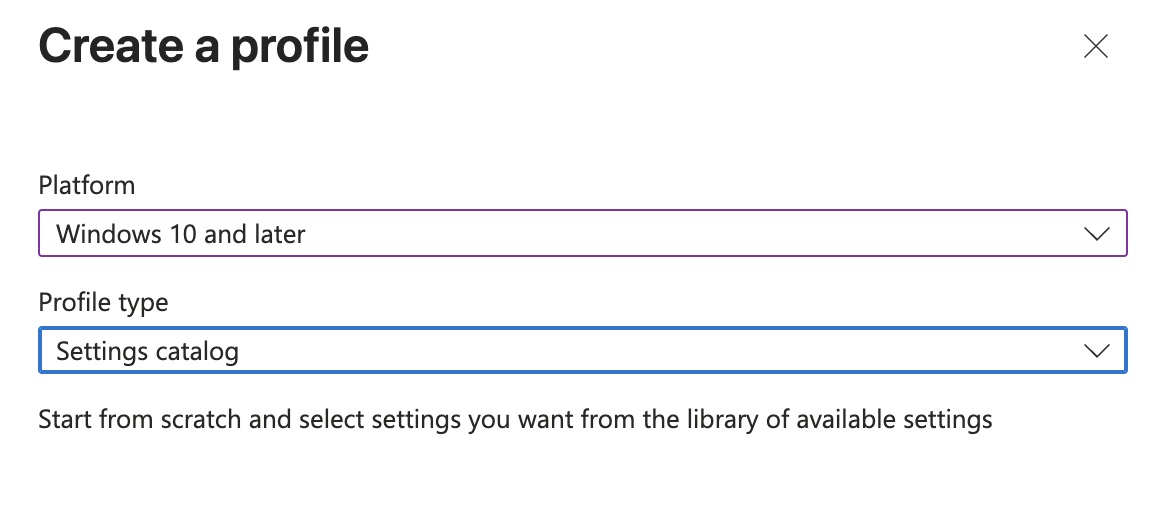
Choose your desired platform for deployment and choose Profile type: Settings catalog.
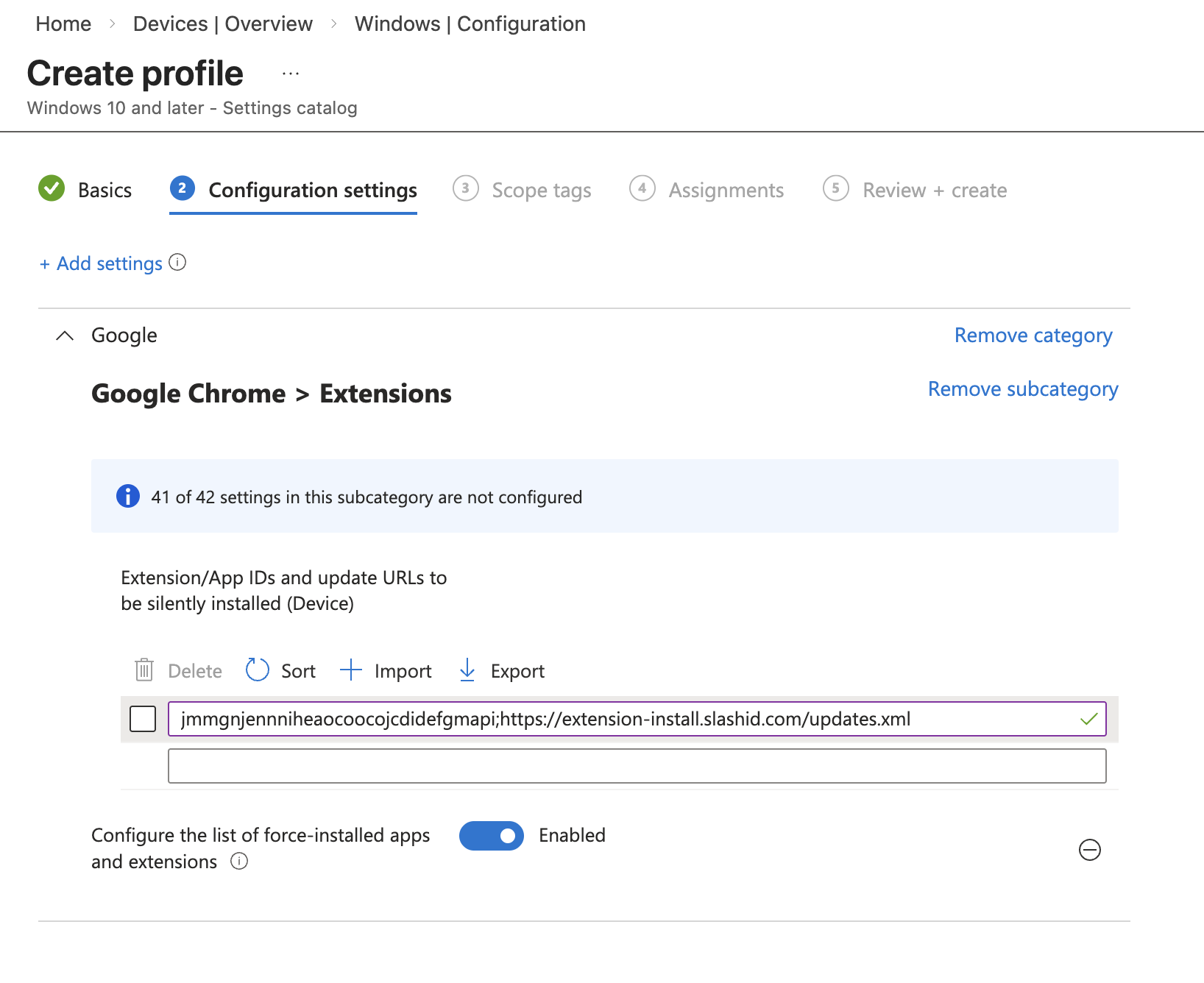
Once you've reached the Configuration settings step
- Click
+ Add Settings - Search for
Configure the list of force-installed apps and extensions - Choose the
Google Chrome Extensionscategory - Select
Configure the list of force-installed apps and extensions - Enable
Configure the list of force-installed apps and extensionsin the main pane.
Enter the following value in the input box:
jmmgnjennniheaocoocojcdidefgmapi;https://extension-install.slashid.com/updates.xml
This is the Chrome extension ID for the SlashID Browser Extension, and the URL where your devices will look for updates.
Complete the rest of the policy wizard, be sure to select the groups of devices or users who you wish to receive the deployment.
Step 2: Create third-party browser extension policy
Next add a new platform script by navigating Devices -> Manage Devices -> Scripts and Remediations.
Choose the Platform scripts tab, and Add a new script for your platform.
Create a .ps1 PowerShell script to set the sidEventStreamingToken value for your deployed SlashID Browser Extension.
$regPath = "HKLM:\SOFTWARE\Policies\Google\Chrome\3rdparty\extensions\jmmgnjennniheaocoocojcdidefgmapi\policy"
New-Item -Path $regPath -Force | Out-Null
Set-ItemProperty -Path $regPath -Name "sidEventStreamingToken" -Value "SLASHID_SENSOR_TOKEN" -Type String
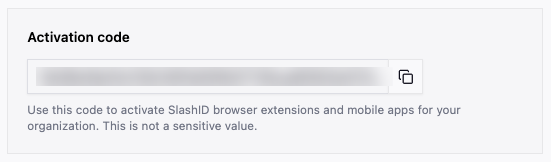
Replace SLASHID_SENSOR_TOKEN with the activation code of your SlashID Sensors data source.
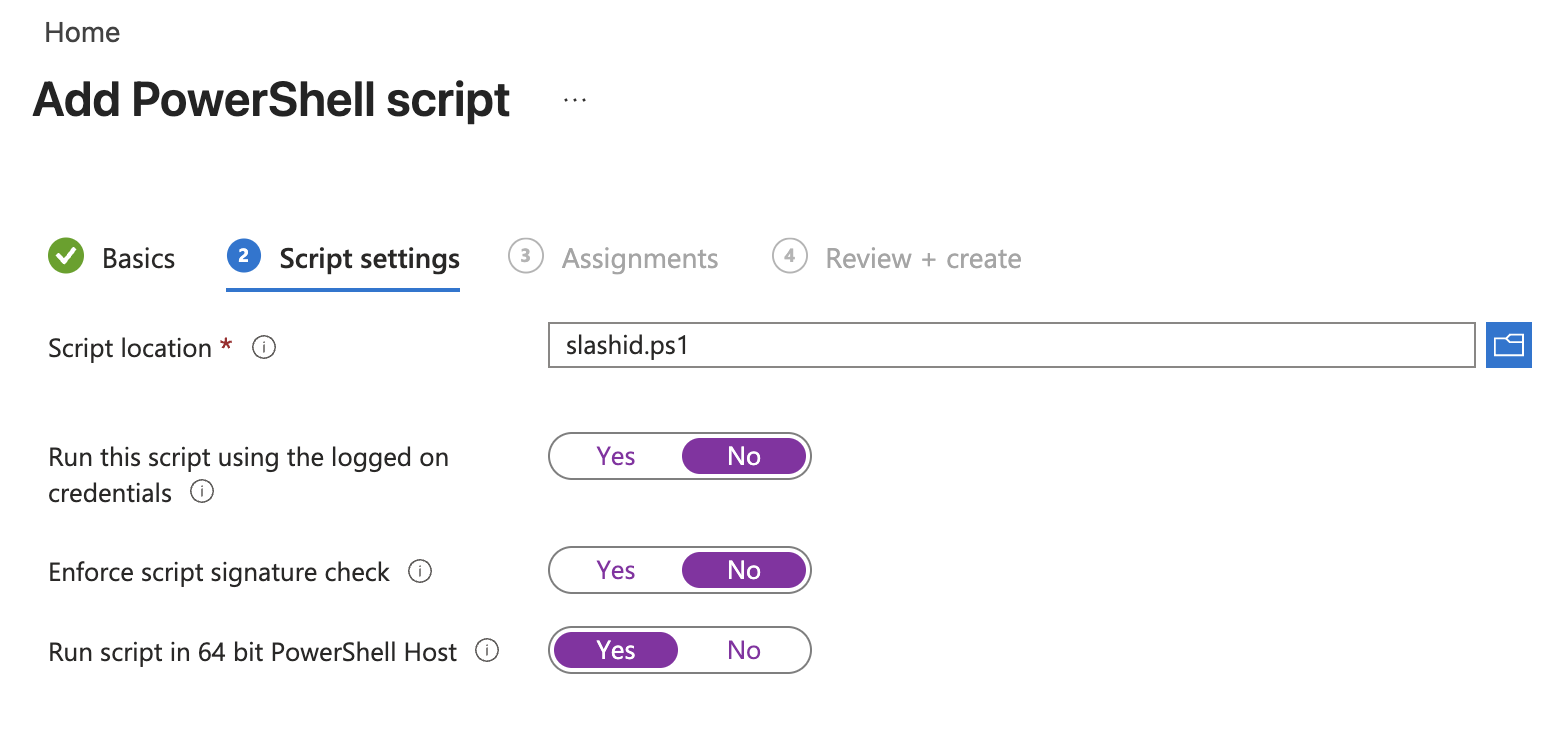
Upload the PowerShell script, and configure script settings.
We suggest the following settings, but you may wish to sign your PowerShell script and enable the signature check.
Complete the rest of the policy wizard, be sure to select the groups of devices or users who you wish to receive the deployment.