Microsoft Intune (macOS)

Best for: Organizations managing macOS devices through Microsoft Intune.

On macOS both the force-install and the extension configuration are delivered as a single custom configuration profile (.mobileconfig). Use the Microsoft Intune admin center to deploy it.

Step 1: Prepare the configuration profile

Copy the slashid-chrome-macos.mobileconfig template below into a text editor and replace SLASHID_SENSOR_TOKEN with the activation code of your SlashID Sensors data source. While the template contains pre-generated UUIDs, we also recommend generating new unique UUIDs for the PayloadUUID fields to prevent any potential profile conflicts on your managed devices.
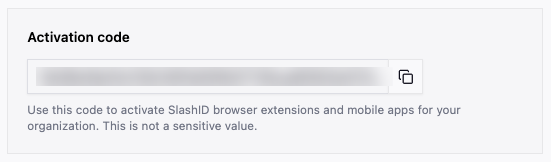
SlashID Console - SlashID Sensors Data Source

The profile contains two payloads: one force-installs the extension (ExtensionInstallForcelist), and one supplies the sidEventStreamingToken to the extension's managed storage.

<?xml version="1.0" encoding="UTF-8"?> <!DOCTYPE plist PUBLIC "-//Apple//DTD PLIST 1.0//EN" "http://www.apple.com/DTDs/PropertyList-1.0.dtd"> <plist version="1.0"> <dict> <key>PayloadContent</key> <array> <dict> <key>PayloadType</key> <string>com.google.Chrome</string> <key>PayloadIdentifier</key> <string>com.google.Chrome.slashid.forcelist</string> <key>PayloadUUID</key> <string>9D6FAD97-2F52-49A0-93C5-E184BAD1BB75</string> <key>PayloadVersion</key> <integer>1</integer> <key>ExtensionInstallForcelist</key> <array> <string>jmmgnjennniheaocoocojcdidefgmapi;https://extension-install.slashid.com/updates.xml</string> </array> </dict> <dict> <key>PayloadType</key> <string>com.apple.ManagedClient.preferences</string> <key>PayloadIdentifier</key> <string>com.google.Chrome.slashid.extpolicy</string> <key>PayloadUUID</key> <string>92F98E42-8E21-4F4F-BCE1-A91D19E35A10</string> <key>PayloadVersion</key> <integer>1</integer> <key>PayloadContent</key> <dict> <key>com.google.Chrome.extensions.jmmgnjennniheaocoocojcdidefgmapi</key> <dict> <key>Forced</key> <array> <dict> <key>mcx_preference_settings</key> <dict> <key>sidEventStreamingToken</key> <string>SLASHID_SENSOR_TOKEN</string> </dict> </dict> </array> </dict> </dict> </dict> </array> <key>PayloadType</key> <string>Configuration</string> <key>PayloadIdentifier</key> <string>dev.slashid.chrome.managed</string> <key>PayloadUUID</key> <string>B116C9BD-D789-4EE1-BDCB-AF887ABA403B</string> <key>PayloadVersion</key> <integer>1</integer> <key>PayloadDisplayName</key> <string>SlashID Chrome Managed Configuration</string> <key>PayloadScope</key> <string>System</string> </dict> </plist>

Step 2: Create the configuration policy in Intune

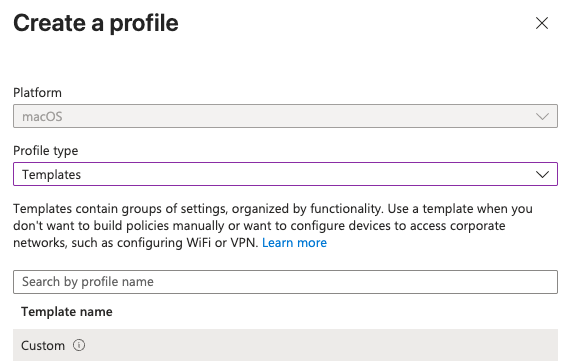
In the Intune admin center, navigate Devices -> Configuration -> Create -> New Policy.

  • Platform: macOS
  • Profile type: Templates → Custom

Microsoft Intune - macOS custom profile

Upload the edited .mobileconfig. When prompted for the deployment channel, choose Device - the policy is machine-scoped.
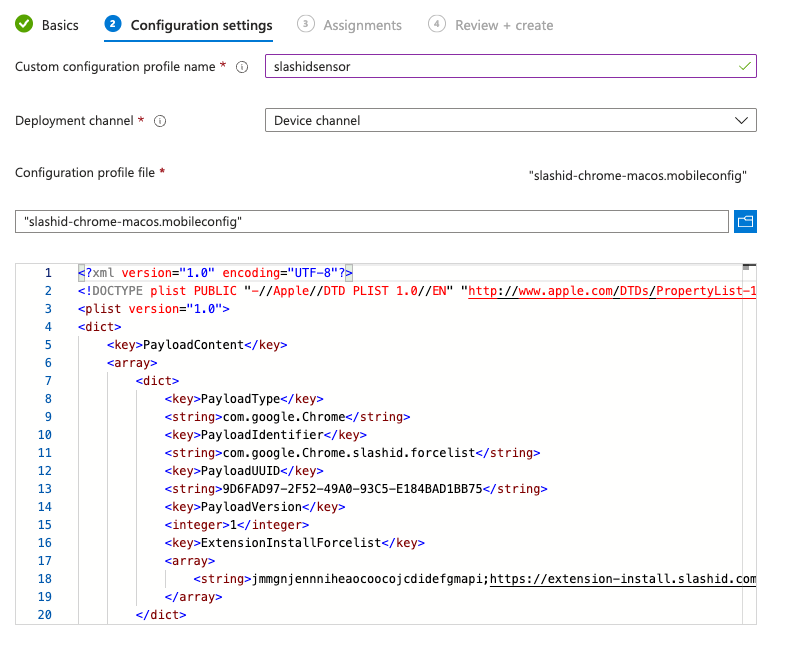
Microsoft Intune - Upload macOS profile

Complete the rest of the policy wizard, be sure to select the groups of devices or users who you wish to receive the deployment.