Microsoft Intune (iOS)
Best for: Organizations managing iOS/iPadOS devices through Microsoft Intune.
This guide covers the SlashID Authenticator iOS app. The app is published on the App Store, so on iOS the deployment takes two steps: assign the app from the App Store as a managed app, then deliver its activation code through an App configuration policy. Once the code is applied, the app activates automatically and skips manual setup. The app requires iOS 15.0 or later. Use the Microsoft Intune admin center to set it up.
Step 1: Deploy the app from the App Store
Add the app by navigating Apps -> iOS/iPadOS -> Add, and choose App type: iOS store app.
Search for SlashID Authenticator, or select it via its store listing:
https://apps.apple.com/us/app/slashid-authenticator/id6760341477
This is the SlashID Authenticator app (bundle id com.slashid.mobilesensor).
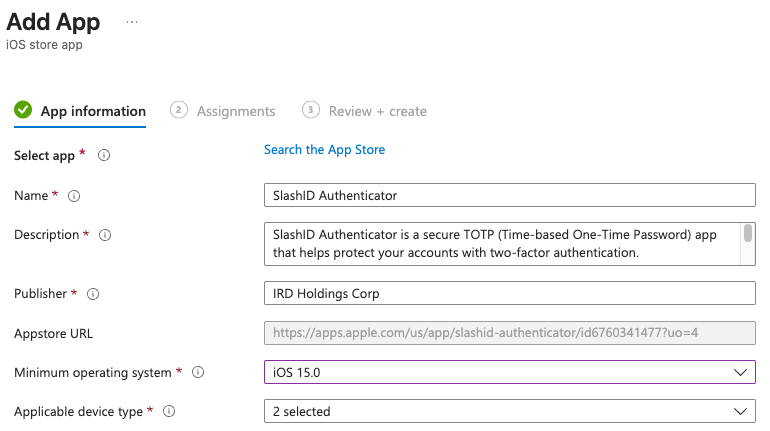
Complete the rest of the wizard. Under Assignments, add the app as Required for the groups of devices or users who should receive it - this installs the app as a managed app, which is what allows the configuration in Step 2 to be applied.
Step 2: Apply the configuration
Create the configuration policy by navigating Apps -> App configuration policies -> Add -> Managed devices.
Platform: iOS/iPadOSTargeted app: select SlashID Authenticator
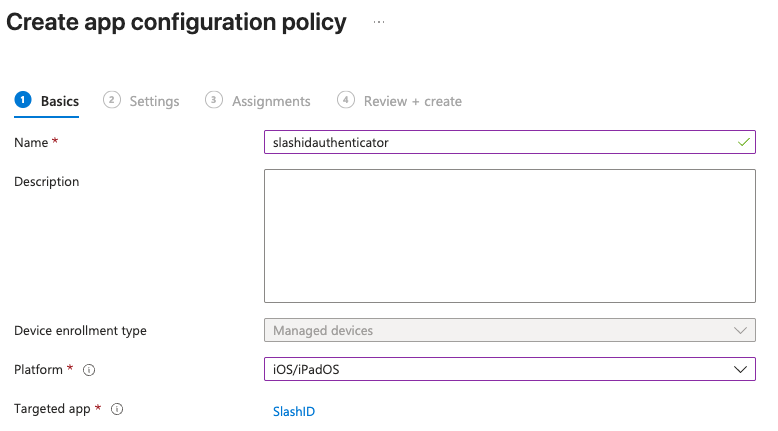
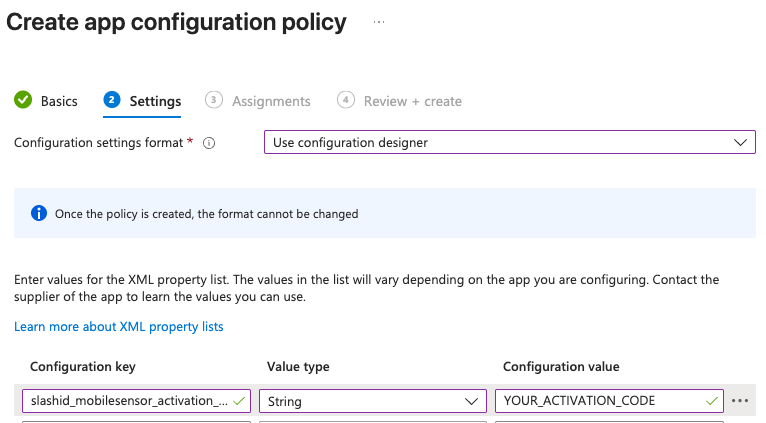
On the Settings step, choose Configuration settings format: Use configuration designer and add a single key:
| Configuration key | Value type | Configuration value |
|---|---|---|
slashid_mobilesensor_activation_code | String | YOUR_ACTIVATION_CODE |
Replace the value with the activation code of your SlashID Sensors data source.
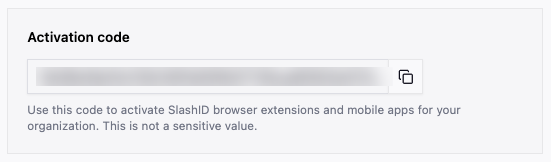
Complete the rest of the policy wizard, and be sure to assign it to the same groups you targeted with the app in Step 1.
Allow a short delay between Intune installing the app and opening it. The app reads the activation code once at launch, so the configuration policy needs a moment to reach the device first. If the app is opened before the code arrives it will show the manual activation screen — simply close it and reopen it once the policy has synced, and it will activate automatically.